Automatic translation is a tool that automatically collects and translates strings in your game. This tool is available on any game and allows you to immediately begin displaying translated strings in your game and broadening your potential audience.
How automatic translation works
Automatic translation works by first collecting strings encountered within the game, either through testing or playing. Once these strings are captured, Roblox automatically translates the strings on your game's localization table.
After collecting these strings, you can enable translations for your game to automatically display the captured strings for users who have their default language settings set to the translated language.
Automatic translation only provides automated translations for blank entries on the localization table and doesn't override any existing translations, including any manual translations made by a developer or translator. For example, if you manually clear a translation for an entry, the tool assumes that you don't want to translate that entry.
Enable automatic text capture
Automatic Text Capture (ATC) captures text strings from UI elements in your game and adds them to your translation table. When enabled, the ATC tool adds text from UI elements encountered by users within your game or during Studio testing.
ATC evaluates over time which strings should be added to your translation table, so it may take up to a few days for new strings to appear in Translator Portal after users encounter them. If you require strings to be captured immediately, you can use the Studio text capture process.
ATC only captures text objects that have AutoLocalize enabled. If you do not want ATC to collect a certain text string, such as a name or unique text entry, disable this property. Note that for TextBox objects, only PlaceholderText is captured; the assumption is that strings in Text were provided by the player.
To enable Automatic Text Capture:
In localization settings, navigate to Settings.
Enable Capture text from experience UI while users play.


Text capture in Studio
There may be situations in which you need to immediately capture strings to your translation table. In these cases, you can use the text capture tool in Studio to capture strings while playtesting. These strings will be added to the localization table within 1–2 minutes of encountering them.
To enable text capture in Studio:
In Studio, open Localization Tools from the Window ⟩ Localization menu.
Enable Automatic Text Capture.


Studio text capture stays on if you start and stop playtesting within the same Studio session, but must be enabled again when you start a new Studio session.
Automatic cleanup
ATC also checks your game for strings that no longer exist, such as usernames or strings related to a past event. By default, the tool will remove these stale entries when it identifies them. Only auto-scraped strings with automatic translations will be removed; strings that were manually added or that have manual translations will not be impacted.
If you do not want ATC to clean up your localization table, navigate to your localization settings and disable the second ATC toggle:

Enable translations
Once strings are captured to your localization table, follow these steps to enable translated content:
In your game's localization page, navigate to Settings.
Enable Use Translated Content.

Navigate to the Languages tab.
Enable any supported languages for automatic translations.
- Experience Information refers to the name and description of your game.
- Experience Strings & Products refers to the text that appears within your game.
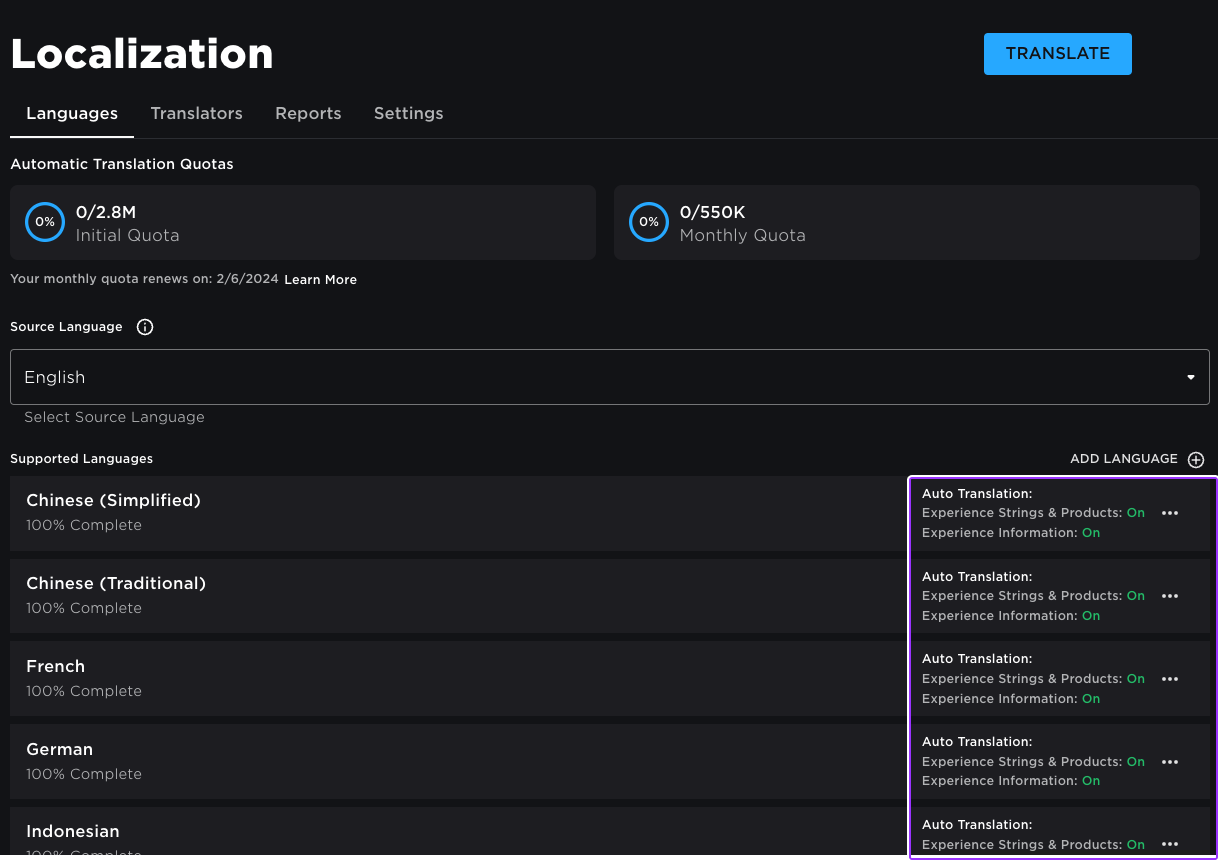


Automatic translation quotas
Roblox has initial and monthly quotas for automatic translation. The initial quota determines how many string entries you can translate when you localize your game for the first time. After you use up the initial quota, any subsequent translations come from your monthly quota, which resets every month.
You can track your automatic translation quota usage on your game's localization page:

Quotas are calculated on a per-character and per-language basis. For example, automatically translating the source string "hello" into 10 different languages will count as 5×10 (50) characters towards your quota.
Automatic translation updates
As the automatic translation tool improves, more accurate translations may become available for existing strings. When these updates become available, Roblox refreshes any automatic translations. Automatic translation updates will appear in your translation history.

If you have a specific translation that you want to remain unchanged, you can lock the entry to ensure it will not be impacted by any updates.

By default, manually added strings and strings with manual translations are locked. If you unlock an entry, it will be impacted by both automatic translation updates and ATC if it is enabled. If you want to generate a new automatic translation for a previously changed or cleared translation, unlock the entry.
Supported languages
Roblox supports automatic translation between the languages listed below. Currently, Roblox Translate will always assume that source strings are in the game's source language.
| Currently supported languages for automatic translation |
|---|
| Arabic |
| Chinese (Simplified) |
| Chinese (Traditional) |
| English |
| French |
| German |
| Hindi |
| Indonesian |
| Italian |
| Japanese |
| Korean |
| Polish |
| Portuguese |
| Russian |
| Spanish |
| Thai |
| Turkish |
| Vietnamese |