Roblox has a built-in leaderboard in the PlayerList. Here, Friends, and Global are views of that same list: Here shows session rankings for players in the current server, and Friends and Global show persistent rankings from an ordered data store that you register in Creator Hub.

Leaderboard views
The PlayerList compares scores across these views:
| View | Rankings |
|---|---|
| Here | Session rankings for players in the current server, from leaderstats. |
| Friends | Persistent rankings among a player's friends who have played the experience. |
| Global | Persistent rankings across players in the experience. |
Use leaderstats to populate Here. Use an ordered data store to populate Friends and Global.
Manage session leaderboards with leaderstats
A leaderstats folder on each player drives the Here view. The following steps set up that folder, add stats, update them during a session, control their order, and hide the PlayerList.
Set up leaderstats
To set up the leaderboard and add players when they enter the experience:
Create a new Script within ServerScriptService and name it Leaderboard.

In the script, connect a function to the PlayerAdded event.
local Players = game:GetService("Players")local function leaderboardSetup(player)endPlayers.PlayerAdded:Connect(leaderboardSetup)Inside the connected function, create a new Folder instance, name it leaderstats, and parent it to the player.
local Players = game:GetService("Players")local function leaderboardSetup(player)local leaderstats = Instance.new("Folder")leaderstats.Name = "leaderstats"leaderstats.Parent = playerendPlayers.PlayerAdded:Connect(leaderboardSetup)

Add stats
Leaderboards use value type objects to store and display player stats. This script shows a player's gold using an IntValue, a placeholder for an integer.
In the leaderboardSetup() function, add lines 8 through 11:
local Players = game:GetService("Players")

local function leaderboardSetup(player)
	local leaderstats = Instance.new("Folder")
	leaderstats.Name = "leaderstats"
	leaderstats.Parent = player

	local gold = Instance.new("IntValue")
	gold.Name = "Gold"
	gold.Value = 0
	gold.Parent = leaderstats
end

Players.PlayerAdded:Connect(leaderboardSetup)
These lines accomplish the following:
An IntValue instance is created.
The instance's Name is set to "Gold". This is exactly how the stat will appear on the leaderboard.

The stat's initial Value is set to 0. Set this to any value you wish, including a value stored in a data store if you're implementing persistent leaderboards.
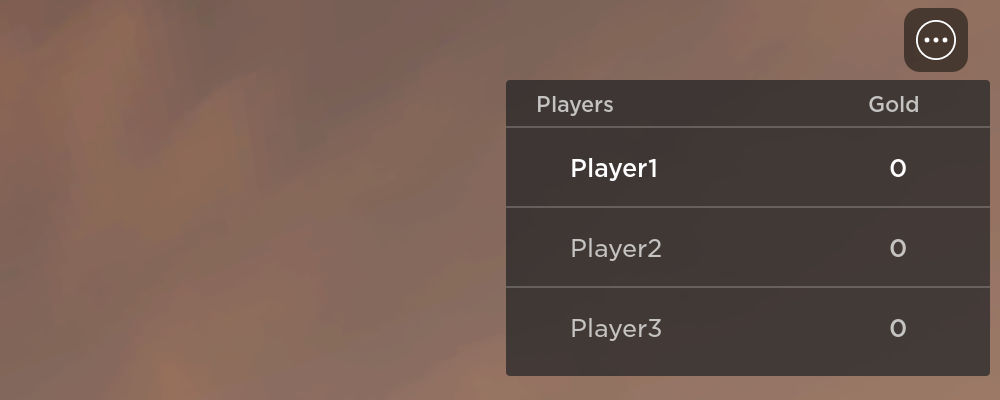
The instance is parented to the leaderstats folder which adds it to the leaderboard. When a player enters the experience, their name appears on the board.


Update stats
To update a player's leaderboard stat, change the Value property of that stat within their leaderstats folder. For example, you can attach the following Script to any pickup object to increase the Gold stat of the player who collects it.
local Players = game:GetService("Players")

local goldChunk = script.Parent

local function onPartTouch(otherPart)
	local partParent = otherPart.Parent
	local player = Players:GetPlayerFromCharacter(partParent)
	local leaderstats = player and player:FindFirstChild("leaderstats")
	local goldStat = leaderstats and leaderstats:FindFirstChild("Gold")

	if goldStat then
		-- Destroy the pickup
		goldChunk:Destroy()

		-- Update the player's leaderboard stat
		goldStat.Value += 10
	end
end

goldChunk.Touched:Connect(onPartTouch)
Order stats
There are three ways to control the order of stats in a leaderboard:
- Add the stats in the order that you want them to appear.
- Add a child BoolValue named IsPrimary to the stat and set its value to true to place the stat first in the leaderboard.
- Add a child NumberValue named Priority to the stat and set its value to an integer. Higher priority values appear earlier in the leaderboard. Stats without a priority have a default priority of 0.
This code sample shows how to add an IsPrimary value to a stat:
local Players = game:GetService("Players")

local function leaderboardSetup(player)
	local leaderstats = Instance.new("Folder")
	leaderstats.Name = "leaderstats"
	leaderstats.Parent = player

	local gold = Instance.new("IntValue")
	gold.Name = "Gold"
	gold.Value = 0
	gold.Parent = leaderstats

	local isPrimary = Instance.new("BoolValue")
	isPrimary.Name = "IsPrimary"
	isPrimary.Value = true
	isPrimary.Parent = gold
end

Players.PlayerAdded:Connect(leaderboardSetup)Hide the leaderboard
To hide the leaderboard, such as on a menu screen or during a cutscene, call SetCoreGuiEnabled() from a client script.
local StarterGui = game:GetService("StarterGui")

StarterGui:SetCoreGuiEnabled(Enum.CoreGuiType.PlayerList, false)
Manage persistent leaderboards with an ordered data store
Friends and Global read scores from an ordered data store that you register in Creator Hub. The ordered data store remains the source of truth, and Roblox displays the configured scores in the PlayerList. This lets you add persistent social and global rankings without building a separate leaderboard interface or ranking service.
The initial beta supports one active persistent leaderboard per experience. Only a registered, active leaderboard appears in the Friends and Global views.
Data requirements
Before you register a leaderboard, confirm that its data meets these requirements:
- A single ordered data store backs the leaderboard.
- Each player has one numeric score in that ordered data store.
- Each key identifies one player by user ID, either directly or through a consistent format that includes the user ID.
- Your experience writes score updates to the ordered data store. The platform reads scores but doesn't write them.
- Your score-writing logic runs on the server.
Prepare ordered data
Choose the path that matches how your experience currently stores scores.
Use an existing ordered data store
If your experience already stores leaderboard scores in a compatible ordered data store, keep that data store and register it in Creator Hub. Confirm that each entry contains a numeric score and that its key consistently identifies one player.
You don't need to rebuild the leaderboard data or copy it into a separate ranking service.
Create an ordered data store
If you don't already have leaderboard data, create an ordered data store and add it to your existing server-side scoring flow. Write one numeric score for each player, and use the player's user ID as the key or include the user ID in a consistent key format.
local DataStoreService = game:GetService("DataStoreService")
local playerScores = DataStoreService:GetOrderedDataStore("PlayerScores")

local function saveScore(player, score)
	local success, errorMessage = pcall(function()
		playerScores:SetAsync(tostring(player.UserId), score)
	end)

	if not success then
		warn(errorMessage)
	end
end
Verify that scores are present before you register the data store in Creator Hub. For more information about storing and sorting persistent values, see ordered data stores.
Migrate scores from another backend
If a standard data store, external database, or another backend stores your leaderboard data, migrate the scores that you want to display into an ordered data store. Preserve one numeric score per player and use a consistent key format that identifies the player.
After the migration, update your scoring flow so new score changes continue to reach the ordered data store.
Configure a leaderboard in Creator Hub
Before you begin, confirm that your experience writes valid scores to the ordered data store.
- Open Creator Hub.
- Select the experience that owns the ordered data store.
- Register the ordered data store that contains your leaderboard scores.
- Enable the leaderboard for the experience.
- Confirm that the leaderboard is active.
- Test the in-experience leaderboard and verify that scores appear as expected.
Deactivating a leaderboard hides it from players but doesn't delete its ordered data store or scores.

Test Friends and Global views
Test with players who already have score entries.
- Join the experience as a player with a saved score.
- Open the in-experience leaderboard.
- Select Friends and confirm that eligible friends appear with the expected scores.
- Select Global and confirm that the player appears with the expected rank and score.
- Update the player's score through your existing server-side workflow.
- Confirm that the leaderboard reflects the updated value.

Manage scores
Continue to update, correct, and moderate scores through your ordered data store workflow. Creator Hub controls which leaderboard is active, but it doesn't replace your score-writing or moderation logic.
Protect score writes with server-side validation, and review suspicious or impossible values before they affect player rankings.
FAQ
No. If the scores are already in a compatible ordered data store, register that data store in Creator Hub.
Migrate the scores that you want to display to an ordered data store, then register it in Creator Hub.
You do. The ordered data store remains the source of truth, and your server-side workflow continues to update and moderate scores.
The initial beta supports one active persistent leaderboard per experience.