In-game instance streaming allows the Roblox engine to dynamically load and unload 3D content and related instances in the Workspace. This can improve the overall player experience in several ways, including:
- Faster Join Times— Players can start playing in one part of the world while more of the world loads in the background.
- Memory Efficiency— Games can be played on devices with less memory since content is dynamically streamed in and out. More immersive and detailed worlds can be played on a wider range of devices.
- Improved Performance— Better frame rates and performance, as the server can spend less time and bandwidth synchronizing changes between the world and players in it. Clients spend less time updating instances that aren't currently relevant to the player.
- Level of Detail— When configured, distant models, platform avatars, and terrain remain visible even when they're not streamed to clients, keeping the game optimized without entirely sacrificing background visuals. SLIM provides the highest-fidelity level of detail for both models and avatars.
Instance streaming is controlled through the Workspace.StreamingEnabled property, enabled by default for new places created in Studio. This property cannot be set in a script.

Technical behavior
Scope
Streaming logic and features apply exclusively to instances that are descendants of Workspace, while instances stored in other containers such as ReplicatedStorage and ReplicatedFirst are ineligible for streaming. For example, placing an atomic model under ReplicatedStorage does not guarantee atomic replication.
Stream in
When a player joins a game with instance streaming enabled:
Instances in the Workspace are replicated to the client excluding the following:

Models set to Atomic, Persistent, or PersistentPerPlayer; see per‑model streaming controls
Models set to Nonatomic (default) when Workspace.ModelStreamingBehavior is set to Improved
Descendants of the above instances
During gameplay, the server may stream instances in the above deferred categories to the client based on the game's streaming properties, player position, client device performance, and other conditions.

Stream out
During gameplay, a client may remove regions of BaseParts from the player's Workspace based on the behavior set by Workspace.StreamOutBehavior. The process begins with regions furthest away from the replication foci and moves in closer, as needed. Regions inside the Workspace.StreamingMinRadius range never stream out.
Note that a Model with no BasePart descendants, such as one used merely as a "container" for non‑BasePart instances like scripts, is exempt from streaming out unless it is made a descendant of a BasePart.
Assemblies
Physical assemblies stream in as complete units, including their associated Constraints and Attachments, helping to ensure consistent physics updates on clients. The only exception is when the assembly is anchored, in which case only the BaseParts within the streaming radius are streamed in alongside their associated Constraints and Attachments.
Assemblies do not stream out until all of their BaseParts are eligible to stream out.
Streaming properties
The following properties control how instance streaming applies to your game. All of these properties are non-scriptable and must be set on the Workspace object in Studio.

| Property | Description |
|---|---|
| EnableSLIMAvatars | Controls whether a SLIM model is generated for avatar characters in the game. When enabled, avatars render using SLIM in the same way that setting Model.LevelOfDetail to SLIM works for other models. See SLIM for details. |
| ModelStreamingBehavior | Controls how Nonatomic (default) models stream in and out. RECOMMENDED Use Improved to enable the most efficient streaming for Models with BasePart descendants. |
| PredictiveStreamingMode | Opts in to predictive streaming which uses engine signals to proactively stream areas a player is likely to need soon, such as respawn locations or regions the player recently left via CFrame change. Predictions are additive, expire after a short time if unused, and are skipped on resource‑constrained clients. |
| StreamingIntegrityMode | The game may behave in unintended ways if a player moves into a region of the world that hasn't been streamed to them. This property offers a way to avoid those potentially problematic situations. RECOMMENDED Use PauseOutsideLoadedArea to balance gameplay integrity without pausing unnecessarily or too often. You can also customize the pause screen. |
| StreamingMinRadius | This property indicates the radius around the replication foci in which instances stream in at the highest priority. Care should be taken when increasing the default, as doing so will require more memory and more server bandwidth at the expense of other components. RECOMMENDED Use the default of 64 to maximize how much the engine can scale the game down for low‑end devices. |
| StreamingTargetRadius | This property controls the maximum distance away from the replication foci in which instances stream in. Note that the engine is allowed to retain previously loaded instances beyond the target radius, memory permitting. A smaller StreamingTargetRadius reduces server workload, as the server will not stream in additional instances beyond the set value. However, the target radius is also the maximum distance players will be able to see the full detail of your game, so you should pick a value that creates a nice balance between these. RECOMMENDED Use the default of 1024 to strike a good balance between visibility for players on high‑end devices and a reasonable memory footprint. |
| StreamOutBehavior | This property sets the streaming out behavior according to the value of Enum.StreamOutBehavior. If set to LowMemory (default), the client only streams out regions beyond the minimum radius in a low memory situation. If set to Opportunistic, regions beyond StreamingTargetRadius can be removed on the client even when there is no memory pressure (in this mode, the client never removes instances that are within the target radius, except in low memory situations). RECOMMENDED Use Opportunistic to allow the client to aggressively garbage collect content, significantly reducing memory usage and helping prevent out‑of‑memory crashes. |
Replication focus
By default, streaming occurs around the local player's character's PrimaryPart, although you can specify a different replication focus point through Player.ReplicationFocus.
You can also add and remove additional replication foci through Player:AddReplicationFocus() and Player:RemoveReplicationFocus() to dynamically enable streaming in multiple areas of the game.
Client-side physics simulation, including prediction and resimulations when server authority is implemented, only occurs in streamed areas, even for locally created instances and for Persistent instances. If you have instances that you'd like to keep simulating even when they're far away from the character, create an additional replication focus near those instances.
Predictive streaming
Predictive streaming is an opt‑in feature that uses engine signals to anticipate player movement and proactively stream areas the player is likely to need soon. When enabled by setting PredictiveStreamingMode to Enabled, it can reduce streaming pauses and visual pop‑in without any code changes.
Predictive streaming is additive. It creates small, temporary streaming foci in addition to your existing replication foci, streams a small amount of extra content, and does not change your game logic or streaming contracts. If a prediction isn't needed, the predicted area expires after a short time and the engine unloads the content. The engine also takes client memory and performance into account, skipping predictions on resource‑constrained devices.
When PredictiveStreamingMode is Enabled, the following predictive features are active:
| Feature | Description |
|---|---|
| Spawn pre‑fetching | When a player dies, the engine creates small, temporary streaming foci at possible spawn locations so that likely respawn areas begin streaming before the player character appears, reducing pauses and missing content immediately after respawn. |
| CFrame return optimization | When a player CFrames away from an area, the engine creates a small, temporary streaming focus at the location they left. This helps keep that area streamed in if the player returns shortly after, a common scenario when moving between buildings, sublevels, shops, or hubs. |
Model streaming controls
To avoid issues with streaming on a per-model basis and minimize use of WaitForChild(), you can customize how Models and their descendants stream through their ModelStreamingMode property.
Nonatomic
By default, models are Nonatomic and they stream in/out based on whether Workspace.ModelStreamingBehavior is set to Legacy (default) or Improved.
Legacy
When Workspace.ModelStreamingBehavior is set to Legacy (default), the Model container and its non‑BasePart descendants such as Scripts replicate to the client when the player joins. Then, when eligible, the model's BasePart descendants stream in.

Improved
When Workspace.ModelStreamingBehavior is set to Improved, model streaming behavior varies by whether the model contains BasePart descendants or does not contain BasePart descendants:
A model with BasePart descendants streams in only when one of its BasePart descendants is eligible to stream in. At that point, the model and the eligible BasePart streams in, along with the model's non‑BasePart descendants.
When the very last remaining BasePart of the model streams out, the model itself will stream out along with it.
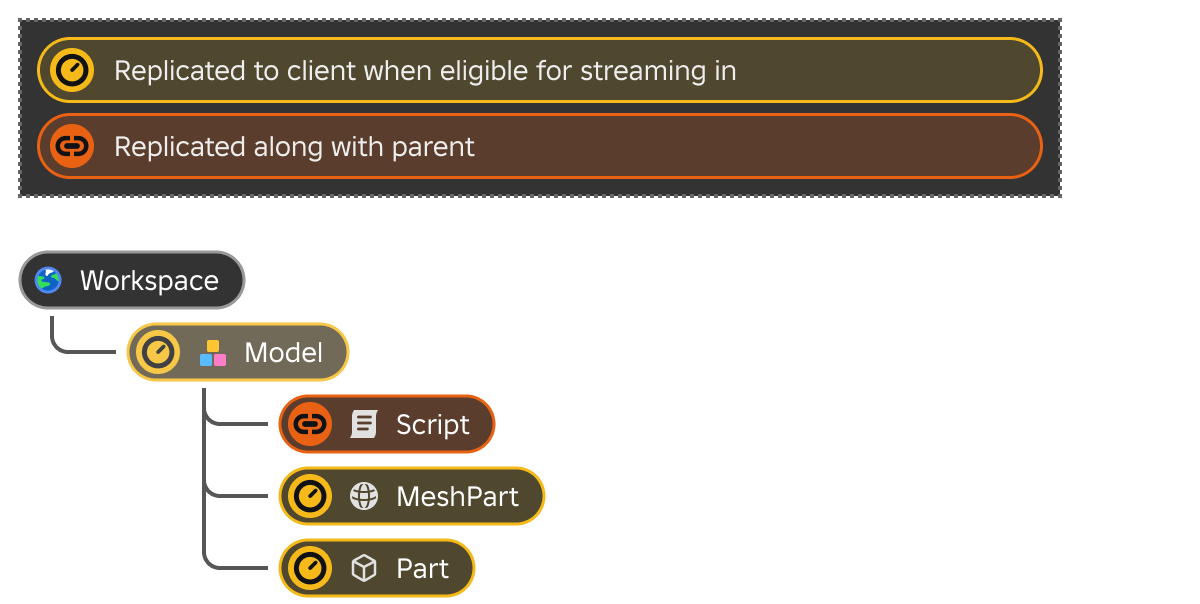


Atomic
If a Model is set to Atomic, all of its initial descendants are streamed in together when a descendant BasePart is eligible to be streamed in. As a result, a client‑side script that needs to access instances inside the model would need to use WaitForChild() on the model itself, but not on a descendant MeshPart or Part since they are sent alongside the model.
An atomic model is only streamed out when all of its descendant parts are eligible for streaming out, at which point the entire model streams out together.

Persistent
Persistent models are not subject to normal streaming in or out. They are sent as a complete atomic unit soon after the player joins and before the Workspace.PersistentLoaded event fires. Persistent models and their descendants are never streamed out, but to safely handle streaming in within a client‑side script, you should wait for the PersistentLoaded event to fire.

PersistentPerPlayer
Models set to PersistentPerPlayer behave the same as Persistent for players that have been added using Model:AddPersistentPlayer(). For other players, behavior is the same as Atomic. You can revert a model from player persistence via Model:RemovePersistentPlayer().
Pause screen customization
Assuming Workspace.StreamingIntegrityMode is set to the recommended PauseOutsideLoadedArea, the game will pause if a player moves into a region of the world that hasn't been streamed to them. In these cases, the Player.GameplayPaused property indicates the player's current pause state which can be used with a GetPropertyChangedSignal() connection to show or hide a custom GUI.
local Players = game:GetService("Players")
local GuiService = game:GetService("GuiService")

local player = Players.LocalPlayer

-- Disable default pause modal
GuiService:SetGameplayPausedNotificationEnabled(false)

local function onPauseStateChanged()
	if player.GameplayPaused then
		-- Show custom GUI
	else
		-- Hide custom GUI
	end
end

player:GetPropertyChangedSignal("GameplayPaused"):Connect(onPauseStateChanged)
Runtime debugging
The engine includes multiple on-screen debug panels that can be enabled on the client using keyboard shortcuts. To access streaming debug information:
- Open the Network Stats debug overlay. In a live experience, press ShiftF3. When playtesting in Studio, press ShiftCtrlF3 (Windows) or Shift⌘F3 (Mac).
- Once the debug overlay is open, press Shift1 repeatedly to cycle through the available panels. The fourth panel is the Streaming debug view which displays useful runtime information:
- Active streaming settings
- Currently loaded (streamed in) regions
- Streaming behavior and state
Once enabled, colored highlighted regions appear in the 3D viewport:
| Color | Description |
|---|---|
| Less than StreamingMinRadius | |
| Greater than or equal to StreamingMinRadius and less than StreamingTargetRadius | |
| Equal to StreamingTargetRadius | |
| Greater than StreamingTargetRadius |